|
Home > Macros > Basics > Comments Excel Comment MacrosUse these comment macros to remove author name, change font or font size, move or resize comments, or add/remove comment shadows. Thanks to J. Woolley, who contributed these macros. Also, see more comment macros.
|
Comment Macros Workbook
The Comment Macros workbook was contributed by J. Woolley. To see all the macros, and to test them, go to the download section below, and click the link.
There are several sheets in the workbook, and an overview of each main sheet and its macros, are in the following sections.
The Instructions sheet has a link to each of the main sheets, and links to related tutorials. Also, click here for more comment macros Go to Top

Samples Sheet
The Samples sheet has general notes about the workbook and its macros. The sheet is protected, with no password.
The Samples sheet also has 5 cells with sample comments.

Those comment cells can be copied to any of the other sheets, to resort the original comments, after testing the macros.
NOTE: When you paste the comments, they will move to their default position, near the top right corner of the comment cell. Go to Top

Comment Macros
The workbook contains 6 comment macros, with a separate sheet for testing each macro. See the macro details in the sections below.
- CommentAuthors - remove author name from start of comment
- FormatComments - change comment font and size
- ResizeComments - change comment size to fit its text
- MoveComments - position each comment near its cell
- CommentShadows - show or hide the comment's drop shadow
- UpdateComments - runs all of the macros listed above
Get the Code
The comment macros are not listed on this page. To see the code, go to the Download section below, and click the link to download the workbook.
There are 2 code modules in the sample file:
- The main comment macros are stored on the M_Comments module, along with several User Defined Functions (UDFs), which are used by the macros.
- The M_MsgBoxCustom code module contains macros that create customized labels for the message box buttons.
Run the Macros
Before running these comment macros:
- MAKE A BACKUP COPY of your file.
- select one or more cells -- with or without comments
Then, click the button on the worksheet, to run the macro.

Confirmation Message
After you click the button to run the macro, a confirmation message will appear.
Selected Cells Contain Comments
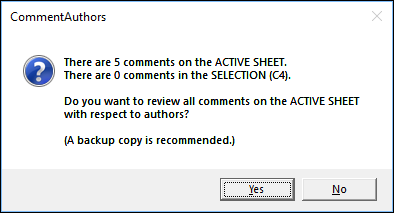
- If one or more of the selected cells contain comments, the message asks if you want the macro to change all comments on the ACTIVE SHEET or just the comments in the SELECTION.
- Read the message, then click Sheet, Selection, or Quit.

Selected Cells Do NOT Contain Comments
- If NONE of the selected cells contain comments, a message will ask if you want the macro to change all comments on the ACTIVE SHEET
- Read the message, then click Yes or No
CommentAuthors Sheet
The button on the CommentAuthors sheet runs a macro that removes an author name from the start of a comment. In the sample workbook, there are 3 comments with my name (Debra Dalgleish), one comment with Author at the start, and one comment with no name at the start.

After you click the CommentAuthors button to run the macro, the Sheet/Selection confirmation message appears, as described above.
Next, a message shows
- number of comment and authors
- number of comments per author
NOTE: Excel can find the author name, even if it is not showing in the comment text.

Then, for each author, a confirmation message appears, asking if you want to remove that author's name from the beginning of the comment text.
The message shows
- number of comments by the author
- number that begin with the author's name.
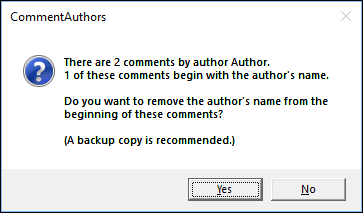
- If you click No, that author's comments are not changed, and the macro goes on to the next author name.
- If you click Yes, another message appears, with OK and Cancel buttons.
- Click OK, if you want to go ahead with the change.

NOTE: If there are lots of comments to change, the macro's progress will show in Excel's status bar, at the bottom left of the Excel window
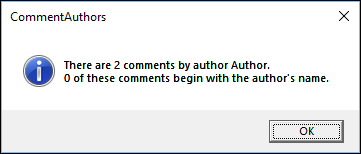
When the changes are completed, another message appears, with the revised count of comments that begin with the author's name.
Here is a screen shot of the revised comments.
- I clicked No for my name, so those comments were not changed.
- For the Author name, I clicked yes, and that name was removed from the 1 comment where it was at the beginning of the text

FormatComments Sheet
The button on the FormatComments sheet runs a macro that changes the comment font and size. The macro does NOT change other format settings, such as bold, italic or color.
After you click the FormatComments button to run the macro, the Sheet/Selection confirmation message appears, as described above.
Next, a message with an input box asks you to enter a valid font name, with Tahoma as the default font.
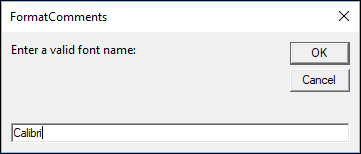
If you click OK, the next message appears, where you can enter a font size -- 9 appears as the default.

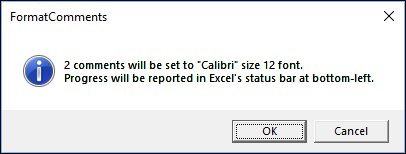
If you click OK, a confirmation message appears, with a summary of the changes. Click OK or Cancel
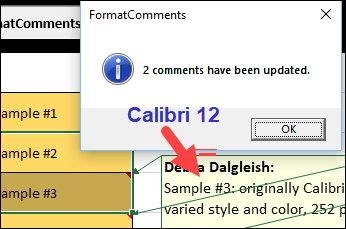
When the changes are completed, another message appears, with the count of updated comments, and the revised comments have the selected font and font size.
ResizeComments Sheet
The button on the ResizeComments sheet runs a macro that changes the comment size to fit its text. The macro does NOT change any font settings, such as font type, size, bold, italic or color.
After you click the ResizeComments button to run the macro, the Sheet/Selection confirmation message appears, as described above.
Next, a message with an input box asks you to enter a number for the maximum width (in points), with 180 as the default width. Excel assumes 72 points per inch, so if you want the comments to be 3 inches wide, enter 216 as the width (72 points x 3 inches)
NOTE: Each comment will be set to its "best width", based on its text, and will not exceed that maximum width.

If you click OK, a confirmation message appears. Click OK if you want to go ahead with the resizing.
NOTE: While the macro is running, you can press the Esc key, to stop the macro.

A final message will appear when the resizing is completed.
Here are comments before the resizing.

The next screen shot shows those comments after resizing -- you might want to rearrange them, to show their text.
- The top comment was made a bit narrower, to match the width of the text lines. It is taller, to show all the text.
- The other two comments are taller, and the second comment was set to the maximum width.

MoveComments Sheet
The button on the MoveComments sheet runs a macro that positions each comment near its cell.
After you click the MoveComments button to run the macro, the Sheet/Selection confirmation message appears, as described above.
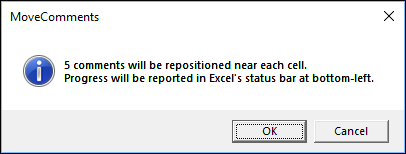
Next, confirmation message appears. Click OK if you want to go ahead with the moves.
A final message will appear when the moving is completed. Each comment that was moved will be near the top right corner of its cell.

CommentShadows Sheet
The button on the CommentShadows sheet runs a macro that activates or deactivates the drop shadow on each comment.
- After you click the CommentShadows button to run the macro, the Sheet/Selection confirmation message appears, as described above.
- Next, a message appears. asking if you want to ACTIVATE or DEACTIVATE the comment shadows.
- Click the Activate, Deactivate or Quit button.

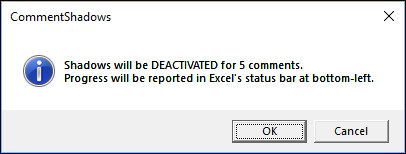
A confirmation message shows which option you clicked, and how many comments will be affected.
A final message will appear when the shadows have been completed.
In this screen shot, shadows were activated for all the comments.

UpdateComments Sheet
The button on the UpdateComments sheet runs a macro that offers to run all of the Comment Macros, for ALL worksheets in the active workbook.
NOTE: Before you run the UpdateComments macro, you can select specific cells on each sheet, if you'd like to make changes to those comments only.
- After you click the UpdateComments button to run the macro, a confirmation message appears, asking if you want to update all the sheets in the active workbook
- Next, a message appears. asking if you want to update comments on one of the sheets.
In the sample workbook, the macro could not make changes on the first 2 sheets, and is asking if changes should be made on the 3rd sheet - CommentAuthors.
Click Yes to change that sheet, or click No to go on to the next sheet.

For each sheet where comments can be changed, the UpdateComments macro runs each of the other macros, and shows the same message boxes that are described in the previous sections.
A final message will appear when the UpdateComments macro is completed.
In the sample file, the last two sheets do not have comments, so no changes were made on those sheets. Comments were updated on 1 sheet.

Download the Sample File
- Download the sample workbook with Excel Comment Macros, contributed by J. Woolley. The file is zipped, and is in xlsm format. To unblock the file (if necessary), find the file in Windows Explorer. Then, right-click the file, and click Properties. Add a check mark at the bottom right, to Unblock.
Related Tutorials
Last updated: January 26, 2023 7:56 PM