|
Home > Filters > Advanced > Duplicates Remove Duplicates in Excel List
|


Video: Remove Duplicates
This video shows the steps for removing duplicate data from a worksheet list, using Excel's Remove Duplicates feature. You'll see the steps for working with a 1-column list, a 2-column list, and a multiple column list in a spreadsheet.
- ✅ To follow along, get the Excel sample file in the download section
Remember to make a backup of your Excel workbook, or the original dataset list, before you start removing duplicate values. The timeline is below the video.
Video Timeline
- 0:00 Excel List With Duplicate Items
- 0:21 Make Backup Copy of Excel List
- 0:42 Use Remove Duplicates Tool
- 1:24 Excel List - Two Column Duplicates
- 1:58 Select Columns
- 2:50 Excel List - Multiple Column Duplicates
- 3:42 Excel List - Multiple Column Example 2
Remove Duplicates - 1 Column
In this example, the list in column B contains duplicate product names. Follow these steps to remove the duplicates:
- Select any cell in the list range, or select the entire list
- On the Excel Ribbon's Data tab, in the Data Tools group, click Remove Duplicates.

- In the Remove Duplicates dialog box, select the column where you want to remove duplicates
- Click the checkbox for My Data Has Headers, if applicable. In this example, there is a heading in cell B1

- Click OK button, to remove the duplicates
- A confirmation message appears, showing the number of duplicates removed, and the number of unique items remaining. Click OK to close that message.
- The list of unique values is left on the worksheet, with all the duplicates removed from the range of cells.
Only the first occurrences for each value in the list are left, and the duplicate rows are gone.

Remove Duplicates - Multi Column
In this example, there is a named Excel table on the worksheet, with 4 columns.
Follow these steps to remove the duplicates from the Excel spreadsheet, based on the values in one or more of the columns:
- (optional) Sort the list, Z-A, so latest items are at the top.
- NOTE: First instance of each duplicate will be left in the list, all others are removed
- Select any cell in the list, or select the entire list
- On the Excel Ribbon's Data tab, click Remove Duplicates.
- In the Remove Duplicates dialog box, select the column(s) where you want to remove duplicates. only the rows with the latest product prices will be kept

- Check the box for My Data Has Headers, if applicable. In this example, there is a heading in cell B1
- Click OK, to remove the duplicates
- Click OK to close the confirmation message
- The list of unique values is left on the worksheet, with all the duplicates removed. In this example, only the rows with the latest product prices were kept. All other rows for each product were deleted

Remove Duplicates - Advanced Filter
Another way to create a list without duplicate items is touse an Excel Advanced Filter. With this method, you can send a list of unique items to a different worksheet, and leave the original list unchanged.

This video shows the steps, and there are written instructions on the Advanced Filter page.
Remove Duplicates - How It Works
Here are a few questions about how the Remove Duplicates feature works, and answers to those questions.
Are Number and Text Numbers Removed as Duplicates?
No. The Remove Duplicates feature does NOT see text strings and numbers as duplicates.
For example, if the list has a 10 (real number) and a '10 (text number), they will NOT be treated as duplicates. Both values will remain in the list after you run the Remove Duplicates command.

Are Extra Space Characters Ignored?
No. The Remove Duplicates feature does NOT ignore extra space characters.
For example, if the list has "Pen" (no trailing space character) and "Pen " (with trailing space character), those items will NOT be treated as duplicates.
Both values will remain in the list after you run the Remove Duplicates command.
Which Duplicate Item is Kept?
The first instance of each item is kept, and all subsequent duplicate items are deleted.
So, if you want to keep the latest entries in a multi-column list, sort the list by a date field, or by another column that indicates the newest items.
For example, this list was sorted by date, in descending order. The duplicate product names will be deleted, and only the latest entry for each product will remain in the list.
Remove Duplicates Number Problem
After you use the Remove Duplicates command, you might see duplicate numbers that remained in the list. This does NOT mean that the Remove Duplicates feature is broken, or untrustworthy.
- Buried deep in the Excel file, there is hidden data that makes those numbers different
- Worksheet functions don't see the difference
- Other features, such as pivot tables and Advanced Filters DO see the differences.
In the following sections, see:
- an example of the problem
- why the duplicate numbers are shown
- how you can fix the problem
Duplicate Number Problem Example
To see an example of the duplicate number problem, get the Number Problems workbook, in the sample files section below.
After using the Remove Duplicates command on a 3-column product list, there are still duplicate entries for some items. For example, this item is listed twice in the screen shot below:
- Cookies -- Chocolate Chip -- 1.87

Formulas See Values As Equal
Even though the Remove Duplicates features sees a difference in the numbers, worksheet formulas see the values as equal.
In this screen shot, formulas compare the values in E3 and E4, and none of the formulas detect a difference between the amounts in those cells.

Examine Worksheet XML
To see the hidden difference between the two numbers, you can dig deep into the workbook, and examine the XML code for a worksheet. Use the sample file below, to see this simple example.
- In the sample file there is a NumberCheck sheet, with the two numbers, in cells A1 and B1
- NOTE: These cells were copied from a Remove Duplicates result (shown above), where Excel saw these as different values
- Copy those two cells to a new workbook, then close and save the new workbook.
- I saved it as "numbercheck.xlsx"

To see the XML code, where you can compare the hidden values, follow these steps:
- Find your new workbook in Windows Explorer, and change its file extension from xlsx to zip
- When the Rename confirmation appears, click Yes
- Right-click the file in Windows Explorer, and click Extract All
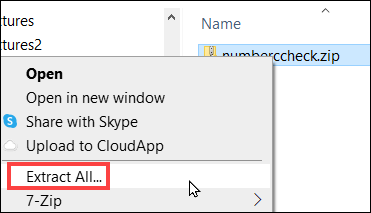
- Open the folder that was created, to see all the contents
- Double-click the xl folder, then double-click worksheets, to see the file contents
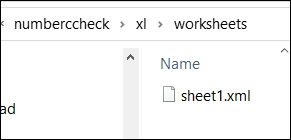
- Right-click the sheet1.xml file, and open it with a text editor, such as Notepad++
- In the text editor, you can see the values for cell A1 and B 1 are different
- In cell A1, the value is 1.68
- In cell B1, there are 16 decimal places, with 2 as the final character
On the worksheet, Excel is limited to 15 digits of precision, so that 2 is not included.
Because the 2 is ignored, the values in A1 and B1 are seen as equal.
NOTE: You can see a detailed explanation of the floating point precision used in Excel on the Microsoft site.

How to Fix Duplicate Number Problem
To fix the problem, you can use the ROUND function, to reduce all the numbers to a set number of decimals. Or, use the text string formula in the next section.
NOTE: This is not an ideal solution, but will prevent differences in the hidden numbers stored in Excel.
ROUND Formula Fix
For example, there are unit prices in column C, and the Remove Duplicates feature sees some differences in those numbers. Follow these steps to round the numbers:
- In cell D2, enter this formula, to round the numbers to 12 decimal places:
- =ROUND(C2,12)
- Copy the formula down to the last row of data
NOTE: The result should have a total 15 digits or fewer. For example, if there are 5 digits before the decimal point, round to 10 or fewer

Text String Formula Fix
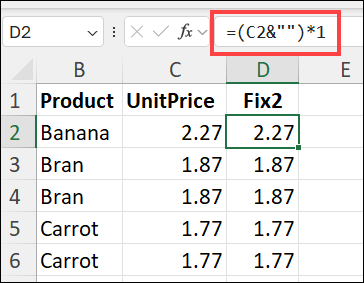
Another way to fix the duplicate numbers problem is to add an empty string to the end of the number, then convert that string to a number.
- Thanks to Daniel Floyd, who suggested this formula.
Using the sample data shown above, put this formula in cell D2, and copy down to the last row of data:
- =(C2&"")*1
Use Fixed Numbers
You could use the column of fixed numbers in your future calculations, and keep the original numbers too.
Or, if you prefer, follow these steps to replace the original numbers with the rounded numbers.
- First, make a backup copy of the Excel file, or at least make a copy of the sheet with the original data.
- Then, copy the formula cells, and Paste As Values, over the original numbers
- As a final step, delete the column with the Fix formulas

Get the Excel Files ✅
- Remove Duplicates: To see the Remove Duplicates examples from this page, download the Excel Remove Duplicates workbook. The zipped file is in xlsx format, and does not contain any macros.
Get Monthly Excel Tips!
Don't miss my monthly Excel newsletter! You'll get quick tips, article links, and a bit of fun. Add your email, and click Sign Up.
Next, when you get my reply, click the Confirm button. I add this step to protect you from spam!
More Tutorials
Advanced Filter - Unique Records
Last updated: May 24, 2025 3:02 PM