|
Home > Formulas > Functions > Checkbox Excel Checkbox Survey Template
|


1) Excel Checkbox Survey Form
If you're using Excel 365, this is a quick and easy way to create a simple survey, using the Checkbox feature, which is on the Excel Ribbon's Insert tab.
- Tip: For earlier versions of Excel, see the Excel survey template with option buttons
2) Video: Checkbox Survey Setup
In this video, I show how to create a quick survey form, using the Checkbox feature.
I also show how to add data validation, so that only one box can be checked for each survey question. There are written steps below the video.
- Tip: You can download an Excel file with this basic form, to follow along with the setup steps.
3) Step 1: Set Up a Survey
To get started, set up a simple survey form on a blank Excel worksheet.
For example, here's a screen shot of the basic survey form from my video, before I added the checkboxes and formulas.
- It has 3 questions, and a scoring system from 1 (low) to 5 (high).

3.1) Optional: Start From Scratch
If you'd like to start from scratch, click on the green check box below, to see how I set up the basic survey. When you're finished, you can click the check box again, to hide these steps.
New Workbook
To get started, open a blank workbook, and save it in xlsx file format.
Double-click the tab for Sheet1, and change its name to Survey
In the sections below, I describe what I added to the Survey sheet, to create the basic survey form.
Headings
- First, I entered a survey heading in cell B1 - "Restaurant Customer Survey"
- I formatted the heading with bold font, in size 18.
Scoring
- Next, in cells C3 to G3, I entered the numbers 1 to 5, as the survey scoring system, and formatted them with bold font
- To make it clear how the scoring works, I typed "Low" above the 1, in cell C2, and "High" above the 5, in cell G2
- I formatted the Low/High cells with italic font
- After that, in cell H3, I typed the heading "Score"
Questions
- The 3 survey questions are in cells B4 to B6:
- How was the food?
- How was the service?
- How was the atmosphere?
You could add more questions for your survey, if needed.
Totals
- Next, for the grand total row, I typed "Total" in cell B8
Cell Borders
- For the final step in setting up the basic survey form, I added the following borders to the worksheet cells.
- Cells C2:H6 - All Borders
- Cells B4:B6 - All Borders
- Cell H8 - All Borders
- Range B8:G8 - Outside Borders

4) Step 2: Add Checkboxes
After the basic survey form is set up, the next step is to add the checkboxes.
- For this example, I selected cells C4:G6.
- That's the 5 scoring cells for each of the 3 survey questions.
- Next, on the Excel Ribbon. go to the Insert tab
- In the Controls group, click on the Checkbox command
A blank checkbox is automatically added to each of the selected cells

4.1) Examine the Checkbox Cells
While you still have the checkbox cells selected, look at the formula bar.
- The active cell contains an empty checkbox
- The formula bar shows the active cell's value, FALSE

4.2) Add a Check Mark
Next, click on any checkbox, to add a check mark.
With the checked cell selected, look at the formula bar again
- The active cell contains an checked checkbox
- The formula bar shows the active cell's value, TRUE

4.3) Answer Each Question
Then, to get ready for the next step, please check one box in each question's row.
I checked boxes 2, 4 and 5 in the screen shot below.

5) Step 3: Scoring Formula
Next, in the survey's Score column, we need a formula that finds which box was checked in each row -- 1, 2, 3, 4 or 5.
To do that, you can use the Excel MATCH function, to find which cell has a value of TRUE (a checked box).
- The MATCH function looks for a specific item in a list or range
- If the item is found, MATCH returns its position in the list or range
Here's the formula in cell H4, to calculate the first question's score:
=MATCH(TRUE,C4:G4,0)
5.1) How the Formula Works
The MATCH function has 3 arguments:
- lookup_value: look for a cell with the value of TRUE
- lookup_array: look in the worksheet cell range C4: G4.
- match_type: find an exact match - 0 (zero)

5.2) See Formula Results
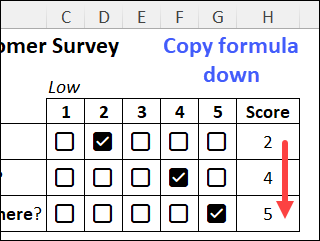
When you press the Enter key, cell H4 shows the formula result - 2 in this example.
Next, copy that formula down, to see the scores for all 3 questions.
5.3) Total Score Formula
Next, to get a total score for the survey, I used the SUM function.
Here's the formula in cell H8:
=SUM(H4:H6)
Based on the current selections, the survey total score is 11.

6) Step 4: Handle Errors
Currently, all of the score formulas are calculating correctly, and returning a number.
- However, if you remove one of the check marks, the result in that row will be an #N/A error.
- That happens when the MATCH function can't find the lookup value in the lookup range.

6.1) Use IFERROR
To avoid that #N/A error, I added an IFERROR function to the score formula.
Here's the revised formula in cell H4.
=IFERROR(MATCH(TRUE,C4:G4,0),0)
Next, copy the revised formula down to the two rows below.
6.2) How the Revised Formula Works
Now, if there’s a missing check mark, in any of the 3 question rows, the result will be 0 instead of an error message.
- First, the MATCH looks for TRUE, in cells C4:G4.
- If there's no cell with a check mark (TRUE), MATCH returns an error,
- When there's an error, IFERROR will return a 0 (zero), otherwise the MATCH result is shown

7) Step 5: Limit Selections
For the survey to work correctly, people should only select one checkbox per question. To prevent multiple selections in any row, you can set a data entry rule.
To set a custom rule, using Excel's Data Validation feature, follow the steps below:
- First, select all of the checkbox cells, from cell C4:G6
- Next, on the Excel Ribbon, go to the Data tab
- In the Data Tools group, click the Data Validation command
- In the Data Validation dialog box, under Allow, select Custom
- In the Formula box, type the following formula:
- =COUNTIFS($C4:$G4,TRUE)<=1
- Click the OK button to close the dialog box, and to apply the custom data validation rule

7.1) Test the Rule
To test the data validation rule, try these two things.
Make a Selection
- In row 4, try to check a checkbox
- That should work, if no other box is checked in that row
- Next, try to check another checkbox in the same row
- That should not work. Excel ignores the click on the second checkbox
Change the Selection
- To change a question's score, click the original check mark, to clear the checkbox
- After that, check a different checkbox in the same row
- That should work, because there was no other box checked in that row
7.2) How the Custom Rule Works
In the Data Validation rule, the formula starts with the COUNTIFS function, with 2 arguments:
- criteria_range1: Checkbox cells in the active row: $C4:$G4
- Column references are absolute ($). Cells in those specific columns should always be checked
- Row references are relative (no $). In each row, the row number should adjust automatically.
- criteria1: What to check for in the criteria range - in this case, TRUE
Next, the formula checks if that count is less than or equal to 1.
- If no checkboxes are checked in row 4:
- COUNTIFS result =0
- You can check any box in that row
- If one checkbox is checked in row 4:
- COUNTIFS result =1
- You cannot check another box in that row, because that would make the count 2, which is not allowed
8) Step 6: Test Your Survey
Once everything is set up, follow the steps below, to test your survey, and make sure it's working correctly.
8.1) Clear the Check Marks
If any checkboxes have a check mark, follow these steps to clear all check marks:
- First, select all of the checkbox cells, from cell C4:G6
- Next, on the keyboard, press the Delete key
- All the check marks will be cleared
Warning:
- DO NOT press the Delete key if all selected checkboxes are empty.
- That will delete all of the checkboxes from the selected cells.
- If that happens, press Ctrl + Z, to undo the deletion.
8.2) Answer Each Question
Next, check one checkbox for each question:
- Does the correct score appear in the Score column?
- Is the Total score correct?
- Are you able to add a second check mark in any row?
- Can you change your score for a question? (steps below)
- Uncheck the original selection, and check a different box
If everything is working correctly, congratulations! You can start using your survey.
If there are any problems, go back through the steps, to see what went wrong.
Get the Excel Files ✅
Get the Excel files for the checkbox surbey shown on this page. There are more sample files in the next section too.
 |
Checkbox Survey - Start -- Starting survey file, ready to add checkboxes and data validation. The zipped file is in xlsx format, and there are no macros.Version: Excel 365 |
 |
Checkbox Survey - Completed -- Simple survey with 3 questions, rate from 1 to 5, using checkboxes. Data validation prevents multiple checks per question. The zipped file is in xlsx format, and there are no macros. Version: Excel 365 |
More Excel Survey Sample Files
 |
Option Button Survey -- Get the Option Button Survey template file, which works in earlier versions of Excel. The zipped file is in xlsm format, and contains
macros. |
 |
Calculate Survey Scores from Letters |
| GAME | Which Excel Function Are You? -- Answer survey questions with option buttons, to find out which Excel function you are. |
Get Monthly Excel Tips!
Don't miss my monthly Excel newsletter! You'll get quick tips, article links, and a bit of fun. Add your email, and click Sign Up.
Next, when you get my reply, click the Confirm button. I add this step to protect you from spam!
More Tutorials
Excel survey template - option buttons
Select Answers With Option Buttons
Calculate Survey Scores with Option Buttons
Show Survey Responses in Pivot Chart
Last updated: March 1, 2025 7:51 PM