|
Home > Data > Find > Line Breaks Add or Remove Line Breaks in Excel
|


1) Video: Excel Line Breaks
In this short video, Sarah shows how to add a manual line break in a cell. Then, see how to find line breaks in a group of cells on the worksheet, and replace with space character. Written steps are below the video.
- Get the sample file for adding and removing line breaks, to follow along with the video.
The full video transcript is available, further down on this page.
2) Add Line Break in Cell Text
To show text on separate lines within a single cell, you can add a line break.
- In the screen shot below, there are two words in cell B2 and cell B3.
- Each cell has a line break after the first word, so the second word is on a new line of text inside the cell
The steps for adding a line break are below the screen shot.
2.1) Add a line break when typing in a cell
- Select the cell
- In the formula bar, click where you want the line break
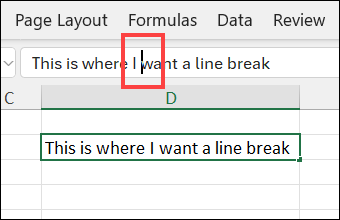
- On the keyboard, press Alt + Enter, to add a line break
- Press Enter, to complete the formula
The cell will automatically be formatted with Wrap Text, and you might need to widen the column.
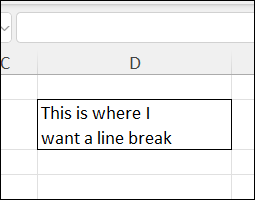
3) Remove Line Break - Single Cell
If you want to remove a line break from a single cell, follow these steps:
- First, select the cell
- In the formula bar, click at the start of the second line
- Tip: If you can't see the second line, drag the bottom of the formula bar, to make it taller. OR, click the small arrow, at the top right of the formula bar.
- Next, to remove the line break, press the Backspace key
- If necessary, type a space character, to separate the words in the cell
- Press Enter, to complete the change

4) Remove Line Breaks - Multiple Cells
In this section, I show how to remove line breaks from multiple cells, using the desktop version of Excel for Windows.
There are special instructions, further down the page, if you're using:
I've added troubleshooting tips and notes too, in case you run into any problems!
4.1) Find and Replace Line Breaks
To remove line breaks from multiple cells, follow the steps below, to use Excel's Find and Replace feature.
a) Find the Line Breaks
- First, select the cells that you want to search
- On the keyboard, press Ctrl + H to open the Find and Replace dialog box
- On the Replace tab, click in the Find What box
- Next, on the keyboard, press Ctrl + J (line break shortcut)
- Note: The Find What box might look empty, but don't worry!
- To see a list of cells with line breaks, click the Find All button
OR, go to the section below, for steps to Replace the line breaks
NOTE: See the troubleshooting tips below, if Excel can't find line breaks

b) Replace the Line Breaks
Next, after you find a line break, you can replace it with a different character, such as a space character, or a hyphen.
To replace a line break with a space character, follow these steps:
- In the Find and Replace dialog box, on the Replace tab, click in the Replace With box
- Next, type a space character, or any character you want to use
- Tip: You can leave the box blank, to replace the line break with nothing
- Finally, click the Replace All button, to replace the line breaks with space characters.

Ctrl + J - Line Break Shortcut
Because you can enter Excel line breaks with the Alt + Enter shortcut, you'd expect that shortcut to work in the Find and Replace dialog box too!
- Unfortunately, if you try Alt + Enter, you’ll just hear a beep from your computer.
- In Find and Replace, you need to use a different shortcut to find a line break: Ctrl + J
Ctrl+J History
It seems like a strange choice, but here's the reason for using Ctrl+J:
- Line break (line feed) is character 10 in the ASCII characters
- J is the 10th letter in the alphabet
- Ctrl + J (^J) is the ASCII control code for character 10
Ctrl + J Problems
However, the Ctrl + J shortcut doesn't work all versions of Excel. If you're using the following versions, go to the special instructions, further down the page:
5) Find/Replace - Troubleshooting Tips
If you try to find line breaks a second time, Excel might say it can't find any.
That usually happens because:
- There is still a hidden Ctrl+J character in the Find What box, left over from your first search
- When you enter another Ctrl+J, Excel looks for places where there are TWO line breaks.
- It probably won't find any cells with 2 line breaks, side by side
5.1) Try These Steps
So, if Excel says it can't find line breaks on a second Find and Replace, these steps to fix the problem:
- Press Ctrl+H to open Find and Replace
- Click on the Replace tab -- you'll see a light border around the word
- Press the Tab key -- that selects everything in the Find What box
- Type Ctrl+J -- that replaces anything in the Find What box
- Then click click one of the Find or Replace buttons at the bottom of the form
5.2) More Troubleshooting Tips
If you tried the troubleshooting tip above, and Excel still won't find and replace the line breaks, here are a few tips and troubleshooting suggestions, to use while you find and replace line breaks in Excel.
- If Ctrl + J does not work, press the Alt key, and type 0010 on the number keypad (do not use the numbers above the letters)
- If the Excel file has never been saved, try saving the file before doing this find and replace
- Try doing this find and replace when you first open Excel, before using the Find box for any other searches.
- To find and replace line breaks in Excel for the Web, try the steps in the next section.
6) Remove Line Breaks - Excel for Mac
If you are using Excel for Mac, the Ctrl + J shortcut does NOT work in the Find and Replace dialog box.
Unfortunately, there's isn't an easy-to-use replacement for that special shortcut on the Mac. As a workaround, you can try the suggestions in this thread in Microsoft's Excel Forum.
7) Remove Line Breaks - Excel Online
If you're using Excel for the Web (Excel Online), the Ctrl+J technique will not work. Instead, try the following steps, if you also have a desktop copy of Excel installed.
Thanks to Frances Matthew for sharing this tip.
In Excel for the Web, follow these steps, to remove multiple line breaks:
- In your online workbook, go to the Home tab on the Excel Ribbon
- At the right, click the Editing menu.
- In the drop-down menu, click on the Open in Desktop App command

- Next, when the confirmation message appears, click the Open Link button.

7.1) NOTE: Do NOT Close Online Excel file
- For now, ignore the pop-up message that says, "All done. You can close this file now."
- Do NOT close the online Excel file.
- You will go back to that file after removing the line breaks
7.2) Find and Replace Line Breaks
When your workbook opens in the desktop version of Excel, follow these steps:
- Use the Ctrl+J technique, to find line breaks, and replace them with a space character, or with nothing. There are detailed steps above.
- When you complete the changes, press Ctrl+S to save the file
- Close the desktop copy of the Excel file
- Go back to Excel for the Web, and click the Resume editing here command in the pop-up window.
- The revised version of the file, with the line breaks removed, will appear in the online Excel window.

8) Line Breaks in Excel Formulas
There are two ways you can use line breaks in Excel formulas:
- Use the Alt+Enter shortcut, to create line breaks in the formula bar
- Those line breaks will NOT appear in the formula result
- These line breaks could help you with formula troubleshooting
- Use the CHAR function in the formula, to add a line break in the cell text
- Those line breaks WILL appear in the formula result
- These line breaks could make formula results easier to read
The steps for both methods of adding line breaks are shown in the sections below
8.1) Add Line Break in Formula Bar
If you are troubleshooting a long Excel formula, you can use the Alt + Enter shortcut, to make the complex formula easier to read in the formula bar.
- NOTE: This will NOT add line breaks to the formula result in the worksheet cell.
- See the next section for steps to do that.

To add line breaks in the Formula Bar, follow these steps:
- Click on the cell that contains the long, complicated formula
- Drag the bottom of the Formula Bar down, to make it taller
- Click somewhere in the formula, where you'd like to add a line break
- Be sure to select a spot that will not affect the formula's calculation!
- For example, click after a comma, or before a function name
- Do NOT click inside a range reference
- To add a line break in the formula, press Alt + Enter
- Add more line breaks, if needed, so you can read the formula more easily, for troubleshooting
- When you're finished, press the Enter key, to complete the formula change
- OR, press Ctrl+Shift+Enter, if you were adding line breaks to an array-entered formula
8.2) Add Line Break in Formula Result
To add a line break in an Excel formula's result:
- use the Excel CHAR function, with number 10 as the code.
- use the & (ampersand) operator to combine the line break with other parts of the formula.
8.2.1) Line Break Example
For example, in the screen shot below, the following formula is in cell C2:
- =B2 & CHAR(10) & A2
It combines the first name from cell B2, a line break, and last name from cell A2.
At first, you might not see the line break. The section below shows how to fix that!

| ▶ |
Tip: To see how to format numbers or dates in the combined result, go to the Combine Cells in Excel page. |
8.2.2) Format the Formula Cell
For line breaks created inside formulas, Excel does not automatically turn on the Wrap Text setting. Follow these steps fix the Wrap Text setting:
- Select the cell where you entered the formula
- On the Excel Ribbon, go to the Home tab
- In the Alignment group, click the Wrap Text button
After that formatting change, the line breaks show correctly in the cell

| ▶ |
Tip: To make the data easier to read, select all the cells, and change their vertical alignment to Top
|

9) Get the Excel Files ✅
Line Breaks: Get the sample file for adding and removing line breaks, to follow along with the video. The zipped file is in xlsx format, and does not contain any macros.
Combine Basic: The workbook has the Combine text examples with the line break and the & operator, and number formatting. The zipped file is in xlsx format, and does not contain macros.
10) Video Transcript: Line Breaks
Here is the full transcript for the Video: Line Breaks, shown above.
Create a Line Break
Line breaks can be a great way to format information in a cell. Hi, this is Sarah from Contextures.com.
To create one, you just need to use an easy keyboard shortcut: Alt + Enter
I already have some in this document and I'm just going to add another. As a bonus, you'll see the cell is automatically formatted as Wrap Text.
Remove Line Breaks
What if you decide this is no longer what you want?
- First, we're going to select the area that we want to change.
- Let's head to Find and Replace.
- You can get there, either by:
- going to the magnifying glass on your Home ribbon,
- or by using the keyboard shortcut: Ctrl + H
Make sure you're on the Replace tab and we'll start with Find what.
Now, if we put in the shortcut we used earlier Alt + Enter, you're just going to get rejected.
So we need to use the shortcut: Ctrl + J
Now you're not going to see anything, but trust that it's there.
Replace With
Hit Tab to move down to Replace with.
Now, depending on how you want your data to look, you could replace with a space, a comma, dash.
- Whatever you want to see in the cell, type it here. I'm going to use a space.
- Hit Find next, and we'll see the first instance
- Then 'Replace' to make the change.
- You can then click, Replace All and see that it found two more.
Those are your shortcuts for line breaks -- make, find, and replace them.
----- END OF TRANSCRIPT -----
Get Monthly Excel Tips!
Be sure to get my monthly newsletter, with quick Excel tips, links, news, and a bit of fun. Just add your email, then click Sign Up.
More Function Tutorials
 |
How to Sum in Excel: Examples show how to sum in Microsoft Excel, with a simple SUM function, or formulas that sum based on one or more criteria. See how to fix formula problems, and for more power, use SUMIF, SUMFS, SUMPRODUCT, SUBTOTAL or AGGREGATE. Step-by-step videos, written instructions, sample files to download. |
 |
Split or Reverse Names: Quickly split first and last names into separate cells, with Excel tricks or formulas. See how to reverse order of names, from "Smith, Mary" to "Mary Smith". Step-by-step videos, written instructions, sample files to download. |
Last updated: February 16, 2026 12:09 PM