|
Home > Formulas > Sum > Student Excel Student Spreadsheets
|


1) Student Time Tracker
Use this Student Time Tracker to keep track of your lecture hours, and course work hours, to see what the weekly totals are.
- Tip: Click here to download this student time tracker file, to follow along.
1.1) Semester Info
In the sample file, the Course sheet is where you'll list your semester info, and your courses.
- At the top, in the blue cells, enter the semester start date and end date
- In the grey cells, formulas calculate the number of weeks in the semester, and how many weeks are left, based on today's date.
1.2) Course List
Below the semester info, there's an Excel table, named tblCourse.
- In the blue cells, enter your course names, and the scheduled lecture and lab hours per week.
- In the grey cells, a formula calculates the total hours per week, for each course.
1.3) Add Your Assignments
In addition to lectures and labs, most courses have assignments, projects, quizzes, exams, and more! You should track the time for those tasks too!
After you enter your course information, go to the CourseWork sheet.
There's a table named tblCW, where you can enter each course assignment that you need to work on.

1.3.1) Enter Assignment Details
- Enter a short description in the Course Work column
- In the Course column, select a course name from the data validation drop down list.
- Next, enter the start date for the task, and its due date.
- Later, when you finish the task, enter the completed date.
- To help plan your time, enter an estimated number of hours that the task will take
- After you finish the task, enter the actual number of hours that it took
- This could help you improve your time estimating skills!
1.3.2) Course Work Formulas
In columns H and I, the grey cells contain formulas:
- The Weeks formula calculates the number of weeks that you have, to complete the task
- The Est Hrs Per Wk formula divides the estimated task hours, by the number of weeks
1.4) Time Estimator
For large assignments, you can use the Course Work Time Estimator sheet, to help you make a detailed time estimate.
- First, enter the task name in cell B8.
- This will remind what you were calculating, if you go back to the sheet later!
- Next, enter all the task steps, and the time each step should take.
- Break the task into small, detailed steps, if possible
- The table will automatically expand, if you need to add more steps
- Optional: Type the order number in which the tasks should be done
- You can sort by this column, to help organize the task list

1.4.1) Add a Buffer
After you enter all the tasks, follow the steps below
- In the top section, in cell D5, add a buffer percentage, to include extra time in the estimate.
- This will cover all those little things that can go wrong along the way.
- The buffer hours are calculated in cell D6
1.4.2) Get the Total
After you enter all the tasks, and the buffer, follow the steps below
- Copy the total estimated hours from cell D7
- Go to the CourseWork sheet
- Select the cell where you want the estimated hours
- Paste As Values, or type the total estimate number there
1.4.3) Store the Task Times
Instead of starting from scratch for each estimate, you can store your estimates, and refer to them later.
On the TimeEst sheet, there is a second Excel table, where you can paste the task estimates that you might want to use again.
- In the screen shot below, I've saved the tasks from two previous estimates - Exam Prep, and Mid-term paper.
- To see the total for a specific task, use the drop down filter on the CourseWork column.
- The total in cell N2 has an AGGREGATE formula, and shows the sum of hours for the visible rows only

1.5) Check Weekly Hours
On the WklyHrs sheet, you can see your total hours for each week in the semester.
- The only data entry cell on this sheet is cell D2 - Max Hrs Wk.
- All the grey cells contain formulas, so don't type in those!
In the screen shot below:
- I entered 22 as the maximum number of hours that I want to spend on classes and assignments
- The formula in cell E2 divides the Max hrs by 7, to calculate hours per day.
- In row 11, the total hours is 26, which is over the weekly maximum, so conditional formatting has changed the fill colour to red, as a warning
- If you see a heavy week coming up, you might be able to complete some assignments early, to ease the workload

1.5.1) Adjust Your Target
After setting 22 hours as my target, I could see that it's much too low! If I only do 3.1 hours of school work each day, things won't go well.
- So, I'd go back to cell D2, and type a larger number - probably 40 or higher.
- Then I'd come back to the WklyHrs sheet at the start of each week, to see if I need to make more adjustments
- And I'll watch for weeks with high hours, and try to move some work around
2) Dorm Packing Checklist
Our summer intern is headed to college in a few weeks, so we made a packing list in Excel. He'll live on campus, so these are the items he'll need while living in his dorm room.
- The packing list has a check box column, with the heading "Done"
- After you pack an item, click the check box, to mark it completed

- Tip: Click here to download this student packing list file, to follow along.
- OR, get a copy of the Google Sheets version of the packing list.
2.1) Sort the List
In the packing list table, each heading cell has a drop down arrow.
- Click that arrow, and you can sort or filter the list
For example:
- In the Done column, remove the check mark from TRUE, then click OK
- The check items are hidden, and only the "not packed" items are showing

2.3) Packing Categories
In the packing list's 3rd column, each item is assigned to a category
- Click in the category cell, and choose a category from the drop down list
To the right of the packing list, there's a Category list, with 3 columns
- Category names are typed in the first column
- You can add, remove, or edit the category names in this column.
- Formulas in the other columns calculate
- The number of items in each category
- The number of "not packed" items in each category
Note: The Category list is not in the worksheet's Print Area. When you print the packing list, the Category List won't be included

3) School Class Tracker
Use this School Class Tracker sample file to keep track of your classes and assignments each semester.
- Enter your course details, assignment due dates, and your grades, throughout the term.
- Formulas show your overall results, and how things are going.
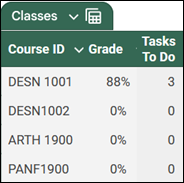
In the screen shot below, the Summary sheet shows the current grade in each class, and the number of tasks that are not yet completed.
4) Get the Sample Files
- Time Tracker: Download the student time tracker file, to keep track of your lecture hours, lab times, and course work hours. The zipped file is in xlsx format, and does not contain any macros
- Dorm Packing Checklist: Download this student packing list file, to keep track of the items you need in your college dorm. The zipped file is in xlsx format, and does not contain any macros
- OR, get a copy of the Google Sheets version of the packing list.
- School Class Tracker: Download this school class tracker file, to keep track of how things are going, in your classes each semester. The zipped file is in xlsx format, and does not contain any macros
- OR, get a copy of the Google Sheets version of the student class tracker.
5) More Student Spreadsheet Files
 |
Student Budget Workbook -- Track and plan spending in this student budget workbook from Bob Ryan. Review cash and credit card spending in
pivot tables that show monthly totals. The zipped file is in xlsx format, and there are no macros in the file. |
 |
Student Grades Report: Get this grades report workbook, to see student grades for each subject. AVERAGE calculates the overall grade. The zipped file is in xlsx format, and there are no macros in the file. |
 |
Track and Summarize Activities -- Get this school activities workbook, to record daily activities and summarize in a monthly report.
Sample shows student and parent activities at a school. Same technique
could be used for business activities. The zipped file is in xlsx format, and there are no macros in the file. |
 |
Triangle Calculator -- Students can check their answers, when learning trigonometry. Enter 3 variables, completed dimensions are returned in Output area. Get this sample file, created by Peter Atherton.The zipped file is in xlsx format, and there are no macros in the file. |
Get Monthly Excel Tips!
Don't miss my monthly Excel newsletter! You'll get quick tips, article links, and a bit of fun. Add your email, and click Sign Up.
Next, when you get my reply, click the Confirm button. I add this step to protect you from spam!
More Tutorials and Workbooks
Worksheet Check Box - To Do List
Conditional Formatting Examples
Last updated: October 28, 2025 1:55 PM