|
Home > Structure > Worksheets > Print Tips Remove Page 1 Watermark in Excel
|


Remove Page 1 Watermark - Quick Fix
You open an Excel file, and there's a huge Page 1 watermark in the middle of the worksheet! How can you remove it?
Here's the quick fix, and there are details and a video below.
- At the bottom right of the Excel window, find the Worbook View buttons
- Click the Normal button, to go back to the regular worksheet view.
- The Page 1 watermark only appears in Page Break Preview

Video: Remove Page 1 Watermark in Excel
In this short video, I show a quick way to hide that page 1 watermark, and why it appeared. There are written steps below the video.
- ✅ To follow along with the video, get the Excel Watermark sample file
Video TranscriptIf you'd like to read the video transcript, click on the green check box below. When you're finished, you can click the check box again, to hide the transcript Page 1 Watermark Video TranscriptIn Excel, you might open a workbook, or switch to a different worksheet, and see a large Page 1 in gray in the middle of your worksheet. This is a sign that you're in page break preview, and it can be a very useful place to work. Turn It OffI'll show you how you can use it, but first I'll show you how to turn this off, and then back on. To turn it off,
There is your worksheet, as you're used to seeing it. Page Break Preview FeaturesWe'll go back into Page Break Preview, so you can see some of the useful features that it has.
As I scroll down in Page Break Preview, if it's a long worksheet, you'll see dashed blue lines, and that indicates an automatic page break. If I scroll down now I'm on page two and you can see what we'll print on page two and three, and so on down to the end of the worksheet. If I look at the place that the first page break will fall, I'm going to increase the zoom a little so I can see what's there. And there are a few items here for February 21st. Move a Page BreakSome of them are on page one, and the rest are on page two. If I'd like to keep those all together, I can move this page break.
When I let go, it's now a solid blue line, and that indicates a manual page break -- one that I've put in, rather than an automatic one. If I scroll down, there's the end of page two, I can adjust it as well by dragging up. You can just check each page before you print it and make sure everything is in a place where you want it. Remove a Page BreakAfter you've added manual page breaks, you can also remove them if you change your mind. So if I click on this cell, just below the first manual page break, and right click, I can click the command here to remove that page break. It's gone now, and there's the automatic page break back. If I want to get rid of all of the page breaks that I put in, I can right-click, and reset all page breaks. Go Back to Normal ViewThen to go back to normal view:
and you're back to the regular spreadsheet view. |
Why Does Page 1 Watermark Appear?
That large grey Page 1 watermark is a built-in Excel feature.
It only appears when you use a special workbook view - Page Break Preview

What Is Page Break Preview?
Page Break Preview is a special workbook view that helps you prepare a worksheet for printing.
- It shows the entire print area for the active worksheet
- In the print area, it shows blue dividing lines and large page numbers, based on how the worksheet will print out, on the selected printer
- You can adjust the dividing lines (page breaks), to keep specific rows or columns together, on the printed pages
- In this view, you cannot remove or change the page number "watermarks"
There are more details in the Page Break Preview section, further down the page.
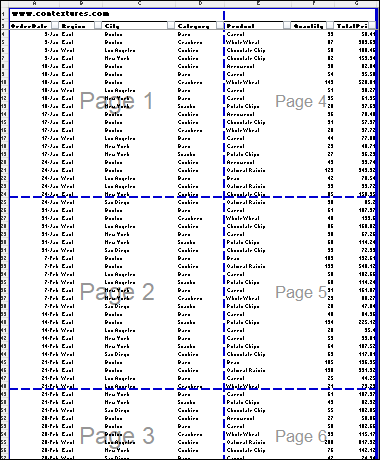
Page 1 Watermark Features
Here are the key features of that "Page 1" watermark in Page Break Preview:
- Page Break Only: The watermark does not appear in the 2 other workbook views - Normal, and Page Layout
- Not Printed: The watermark text does not get printed if you print the worksheet, in any workbook view.
- Remove?: No, you cannot remove the watermark from Page Break Preview
- Change?: No, you cannot change the watermark's colour, font, position, or transparency, or any other properties.
Switch to Normal View
To stop seeing the Page 1 watermark, you have to get out of Page Break Preview.
To go back to the Normal view, use either of these 2 methods:
Method 1) On the Excel Ribbon, go to the View tab, and in the Workbook Views group, click the Normal button

Method 2) Click the Normal View button in the Status Bar, at the bottom right of the Excel window.
Using Page Break Preview
If you have to print out an Excel worksheet, page break preview can be a great help. At a quick glance, you can see what will print on each page, and make minor adjustments, if needed. Those page tweaks can help you save paper, and time!
To go back to Page Break Preview, follow these steps:
- On the Excel Ribbon, go to the View tab.
- Click on Page Break Preview.
- Note: You might see a Welcome to Page Break Preview message explaining what you can do in this view. If you don’t want to see this again, just check the box and click OK
Page Break Lines
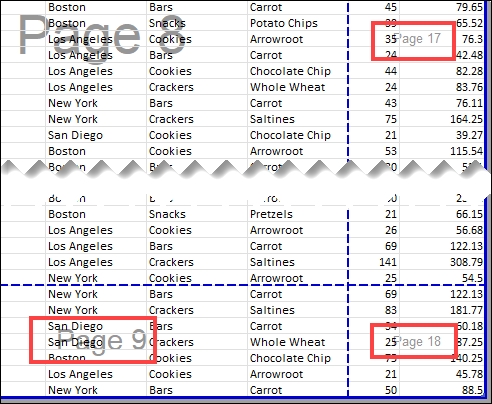
In Page Break Preview, you’ll see dashed blue lines indicating automatic page breaks. Excel inserts those, based on your worksheet’s layout.
As you scroll up and down or across, you can see how your pages will look when printed.
- Rows: Horizontal blue lines show where the rows are separated onto different printed pages
- Column: Vertical blue lines show where the columns are separated onto different printed pages
In the screen shot below, the Page watermarks are different sizes, based on the printable area on each page.
Adjust Page Breaks
If you want to keep specific sections together, you can move the page breaks:
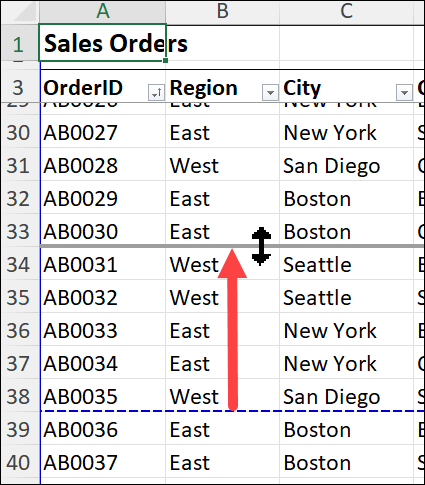
- Hover over the dashed blue line (automatic page break) to see it change to a double-headed arrow.
- Click and drag the dashed line to the spot where you want it.
- For example, you can move it between two rows to keep related data together.
When you release the mouse button, the line will turn solid blue, indicating that it is now a manual page break.
Remove Page Breaks
If you change your mind about a manual page break, you can easily remove it:
- Click on the cell just below the manual page break you want to remove.
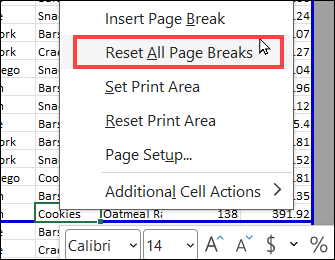
- Right-click and select Remove Page Break.
To remove all manual page breaks, right-click and choose Reset All Page Breaks.
Get the Sample Files
- Watermark: Download the sample file for Page 1 watermark, to follow along with the video. The zipped file is in xlsx format, and does not contain any macros.
Get Monthly Excel Tips!
Don't miss my monthly Excel newsletter! You'll get quick tips, article links, and a bit of fun. Add your email, and click Sign Up.
Next, when you get my reply, click the Confirm button. I add this step to protect you from spam!
Related Links
Last updated: February 23, 2026 3:58 PM